AI Suggestions
Organize It can suggest places to visit, eat, and stay for your trip using an AI provider. Suggestions are tailored to your destination, your travel preferences, and what you have already planned, and every result is grounded on a real place from Google Places.
Opt-in feature (Bring Your Own Key)
AI suggestions are disabled by default and require your own API key from a supported provider. Nothing is generated until you enable the feature and configure a key in your profile.
How It Works
- You enable AI suggestions and add your API key in Account Settings.
- On a trip, you open the AI suggestions panel and press Generate.
- The AI proposes places based on your destination, preferences, existing plans, and weather.
- Each proposal is grounded on a real place (address, coordinates, opening hours) via Google Places.
- You review the result cards and add the ones you like to your trip.
Enabling AI Suggestions
- Go to your Account Settings page
- Find the AI suggestions card
- Toggle Enable AI suggestions on
- The provider, API key, and preference fields appear
Until the toggle is on, the AI settings and the in-app AI features stay hidden.
Choosing a Provider and Adding a Key
Two providers are supported:
- Google Gemini
- Mistral AI
Select your provider, paste the API key issued by that provider, and click Save.
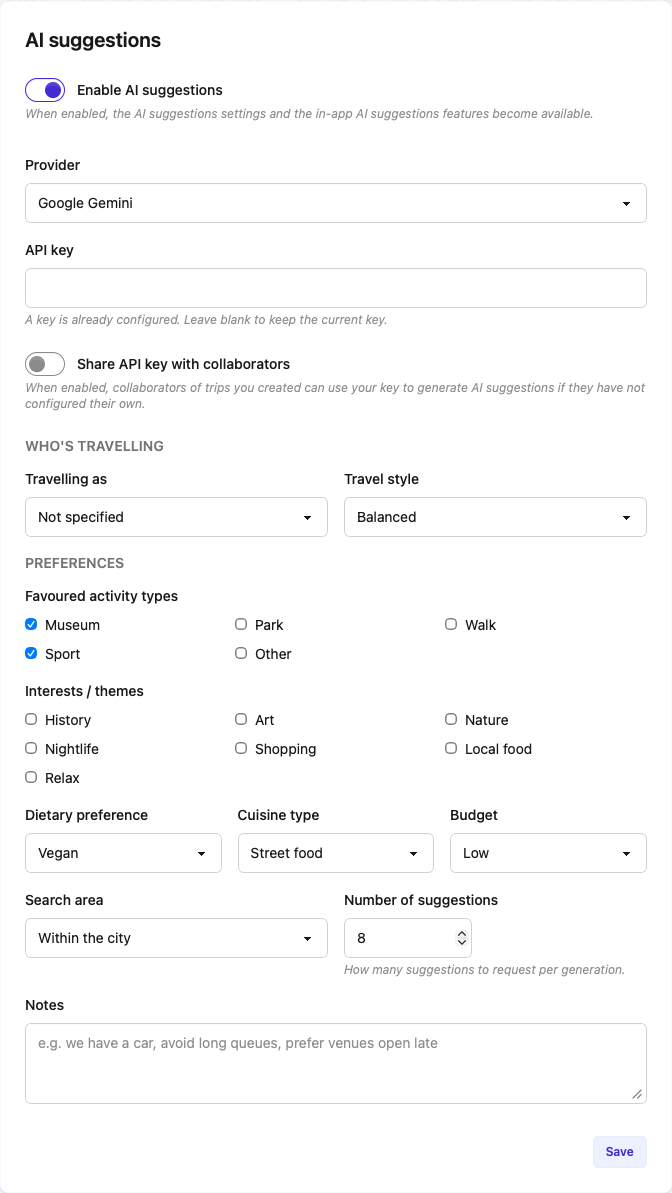 The AI suggestions settings, with provider, key, sharing, and preferences
Your key is stored securely
The API key is encrypted at rest and never shown back to you in clear text. Once saved, the field stays masked — leave it blank to keep the current key, or type a new one to replace it. If you switch provider, you must enter the key for the new provider.
Usage counts against your quota
Every generation calls your provider using your API key, so it consumes your quota (and any associated cost). Results are cached to avoid unnecessary calls.
Suggestion Preferences
The preferences you set once in Account Settings are reused for every generation, so you don't have to re-enter them each time.
| Field | Purpose |
|---|---|
| Travelling as | Solo, couple, family with children, or group of friends |
| Travel style | Iconic must-sees, balanced, or off the beaten path |
| Favoured activity types | Bias experiences toward the types you like (museums, walks, sport, …) |
| Interests / themes | History, art, nature, nightlife, shopping, local food, relax |
| Dietary preference | No preference, vegetarian, vegan, or gluten-free |
| Cuisine type | No preference, local traditional, street food, or international |
| Budget | Low, medium, or high |
| Search area | Within the city, city and surroundings, or include day trips |
| Number of suggestions | How many results to request per generation (3–15, default 8) |
| Notes | Free-text hints, e.g. "we have a car, avoid long queues, prefer venues open late" |
Generating Suggestions on a Trip
AI suggestions live in the trip map view.
Desktop
- Open the trip and go to the map view
- In the side panel, switch to the AI suggestions tab (next to Search)
- Optionally narrow the scope with the stage/city and kind selectors
- Press Generate
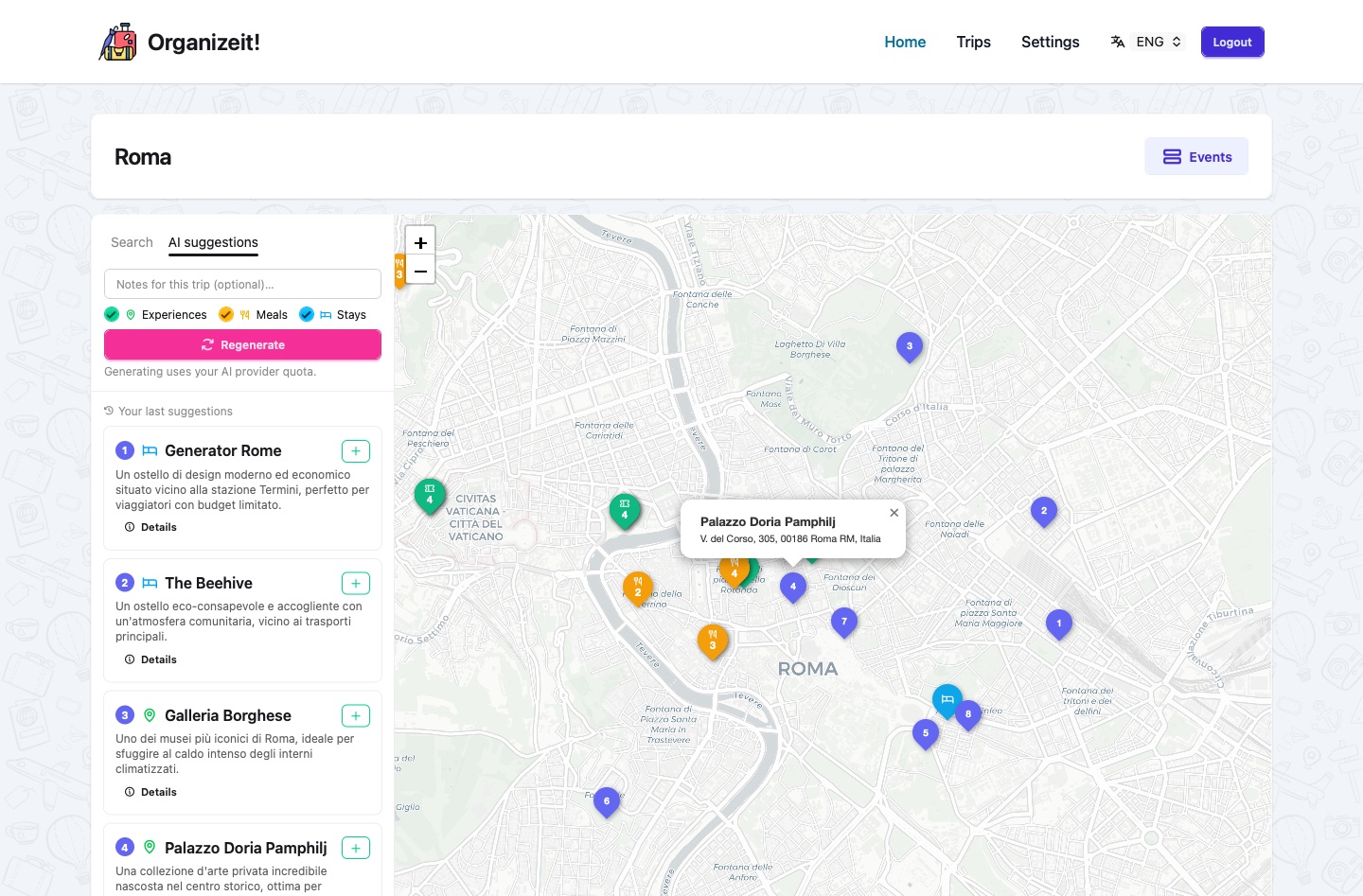 Generated suggestions in the map panel, with matching numbered pins on the map
Mobile
On smaller screens the same feature opens as a modal from the trip page, with the identical Generate flow and result cards.
Scoping a Generation
- Stage / city — for multi-destination trips, generate suggestions for a single stage. The results (and the underlying context) are centred on that stage's days.
- Kind — restrict results to experiences, meals, or stays only.
- Notes — you can add one-off notes for a single generation on top of your saved preferences.
Generate vs. Regenerate
- Generate produces a fresh set of results the first time.
- Regenerate appears afterward and bypasses the cache to request a brand-new set (spending quota again).
Results are cached
A generation is cached for 24 hours, and your last results stay available for 48 hours. Reopening the panel or modal re-shows your last results without spending quota — you only pay when you press Generate/Regenerate.
Reviewing and Adding Suggestions
Each suggestion is shown as a card with:
- A kind icon (experience, meal, or stay) matching the app's map pins
- The place name and a short description
- The address and city resolved from Google Places
- An option to load details on demand (website, phone, opening hours)
To add a place, click Add on its card. It is created as an Experience, Meal, or Stay and appears in your trip's unpaired items, ready to be assigned to a day. The accepted card is replaced by a success message.
No duplicates
Places already present in your trip are hidden from the results, and the trip's existing places are fed to the AI so it avoids proposing things you already planned.
Grounding on Real Places
Every proposal is matched against Google Places to attach a real address, coordinates, and place ID. Proposals that can't be matched — or that resolve to a place outside your chosen search area — are discarded, so cards always point to a real, correctly located venue.
Planning a Whole Day
Besides suggesting individual places, Organize It can propose a full itinerary for a single day — an ordered set of stops (experiences, meals) that fit together.
- On a trip, open the day you want to plan and press Plan day (the button on the day header).
- In the modal, optionally add notes for this day, then press Plan day to generate.
- Review the proposed stops. Each one has a checkbox — untick anything you don't want.
- Press Apply day to add the selected stops to the day.
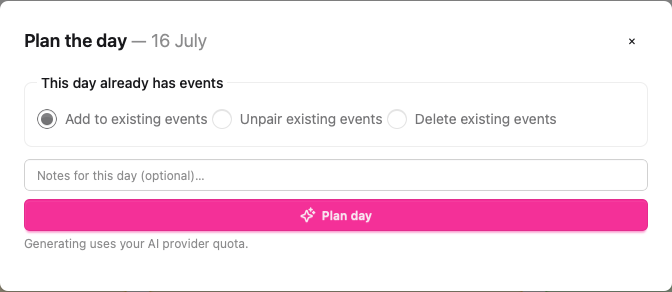
Choosing a Strategy
If the day already has events, you pick how the plan should treat them:
- Add to existing events — keep what's there and add the new stops alongside.
- Unpair existing events — the current events are moved to the unassigned list when you apply the plan, leaving the day for the new stops.
- Delete existing events — the current events are deleted when you apply the plan.
Nothing changes until you apply
Generating only proposes an itinerary. Your existing events are unpaired or deleted only when you press Apply day, and only for the strategy you chose.
Generating uses your quota
Like place suggestions, planning a day calls your AI provider with your key and counts against your quota and daily limit.
Sharing Your Key with Collaborators
If you created a trip and added collaborators, you can let them generate AI suggestions using your key when they haven't configured their own.
- In Account Settings, under AI suggestions, enable Share API key with collaborators
- Collaborators of trips you created can now generate suggestions with your key
How it resolves for a collaborator:
- If the collaborator has their own key, that is always used.
- Otherwise, if the trip author shared their key, the author's key is used.
- If neither is available, generation is unavailable.
Shared-key notice
When a collaborator relies on the author's shared key, a one-time notice informs them. They can dismiss it, and it won't show again for that trip.
Shared usage is billed to you
While sharing is enabled, collaborators' generations consume your provider quota. Turn the toggle off at any time to stop sharing.
Frequently Asked Questions
Do I need to pay Organize It to use AI suggestions?
No. The feature uses your own provider account and key (Bring Your Own Key). Any cost or quota is between you and your AI provider.
Which providers can I use?
Google Gemini and Mistral AI.
Where is my API key stored?
Encrypted at rest in the database. It is never displayed back to you in clear text or written to logs.
Why did I get fewer results than I asked for?
Some proposals can't be grounded on a real place, or fall outside your search area, and are dropped. The app over-requests candidates to compensate, but the final count can still be lower.
Can collaborators see my key?
No. Sharing lets them use your key to generate suggestions; the key itself is never shown to them.
Related Guides
- Experiences - Activities and attractions
- Meals - Restaurants and dining
- Stays - Accommodation
- Collaboration - Working on a trip with others
Next: Learn about collaborating on a trip