Days
Days are the organizational units of your trip. They are automatically generated based on your trip's start and end dates and contain all the events planned for each specific day.
What is a Day?
A Day represents a single calendar day within your trip. Each day:
- Has a number (Day 1, Day 2, etc.)
- Has a specific date (e.g., Friday, March 14, 2025)
- Contains events (experiences, meals, transfers)
- Can have one stay (accommodation)
- Is automatically generated from trip dates
How Days Are Created
Days are created and managed automatically by the system based on your trip dates.
Automatic Generation
When you create a trip with: - Start Date: March 14, 2025 (Friday) - End Date: March 16, 2025 (Sunday)
The system automatically creates: - Day 1: Friday, March 14, 2025 - Day 2: Saturday, March 15, 2025 - Day 3: Sunday, March 16, 2025
You Cannot Manually Create Days
Days cannot be created, edited, or deleted manually. They are always auto-generated from the trip's start and end dates.
Updating Days
Days update automatically when you:
Extend the Trip
Before: 3 days (Mar 14-16) Change: End date to Mar 18 Result: 2 new days created (Day 4, Day 5)
Shorten the Trip
Before: 5 days (Mar 14-18) Change: End date to Mar 16 Result: Days 4 and 5 are deleted
Data Loss
When days are deleted, all events on those days become "unpaired" and need to be reassigned or deleted.
Change Start Date
Before: Days start on Mar 14 Change: Start date to Mar 15 Result: All days shift forward, Day 1 is now Mar 15
Day Structure
Day Number
Each day has a sequential number starting from 1: - Day 1 = First day of trip - Day 2 = Second day of trip - Day 3 = Third day of trip - etc.
The day number never changes unless you modify the trip dates.
Day Date
Each day corresponds to a specific calendar date: - Day 1 might be "Friday, March 14, 2025" - Day 2 might be "Saturday, March 15, 2025"
The date is displayed along with the day number for clarity.
Events on a Day
Each day can contain multiple events:
- Experiences: Museums, tours, walks, attractions
- Meals: Breakfast, lunch, dinner, snacks
Events are displayed in chronological order based on their start time. Events without a start time appear last, ordered by the sequence you added them. You can also reorder events manually (see Reordering Events).
Stay on a Day
Each day can have one accommodation (stay) associated with it:
- Stays can span multiple consecutive days
- The same stay appears on all days it covers
- Example: A 3-night hotel from Day 1 to Day 3 appears on Days 1, 2, and 3
Viewing Days
From Trip Overview
The trip detail page shows all days in order:
- Day header (number + date)
- Stay information (if assigned)
- All events for that day
- Quick action buttons (Add Experience, Add Meal, etc.)
Day Detail View
Click on a day to view:
- Complete timeline of events
- Event details with expand/collapse
- Navigation to previous/next day
- Quick actions to add events
- Toggle between list view and map view (top-right switch)
Day Navigation
When viewing a day, you can: - Click ← Previous Day to go back - Click Next Day → to go forward - Click the trip title to return to trip overview
Keyboard Navigation
Use arrow keys to navigate between days (if implemented in future)
Events Within Days
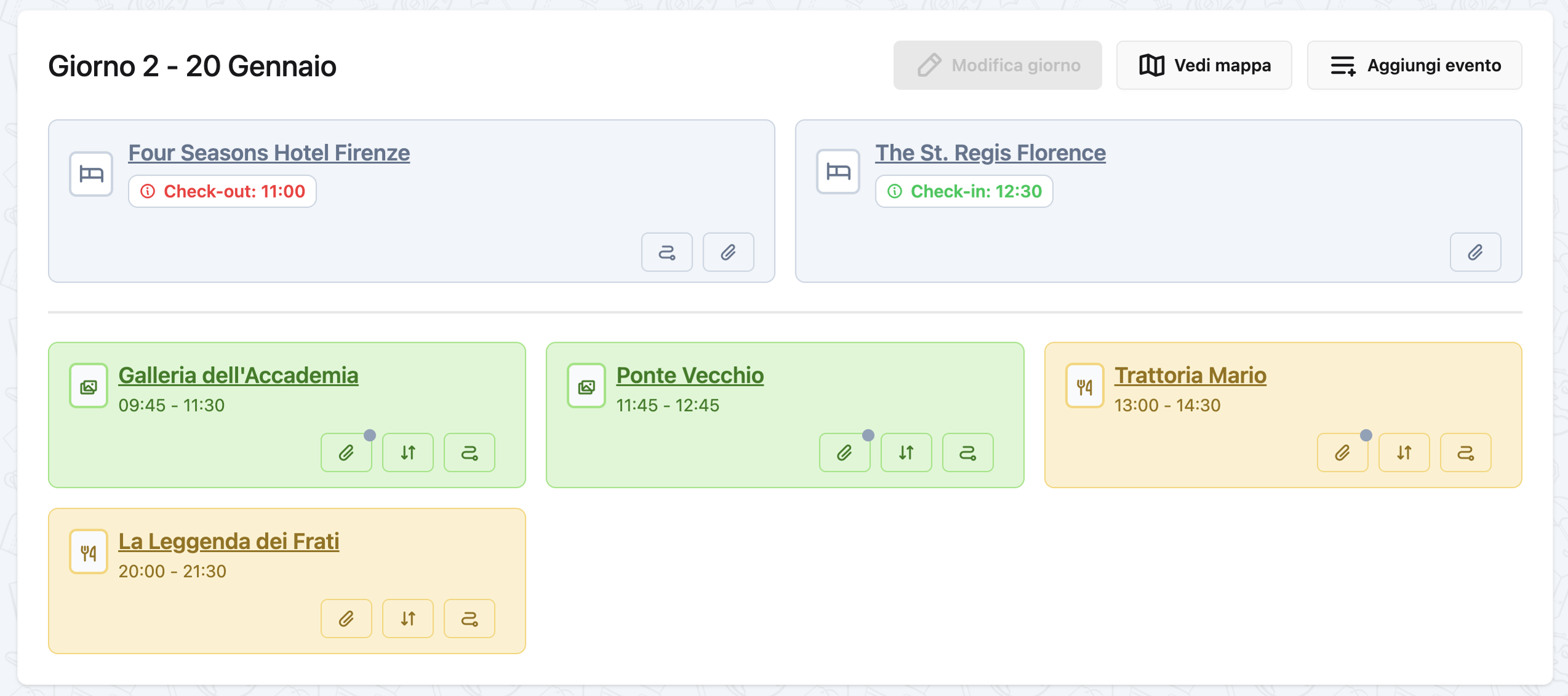 A day with its events in timeline view
List View
Events are displayed in chronological order:
Day 1 - Friday, March 14, 2025
─────────────────────────────────
Stay: Hotel Forum Roma (Check-in: 15:00)

16:00 - Colosseum Tour (Experience)
19:30 - Trattoria da Enzo (Meal)
Map View
Switch to map view to see all events and your accommodation plotted on an interactive map. Use the view toggle in the top-right corner of the day detail page, or set your preferred default in your profile settings.
Reordering Events
You can manually change the display order of events within a day:
- Desktop: Drag and drop events to the desired position
- Mobile: Use the ↕ Swap order button on each event card to select a target position
The order is saved automatically and used for display in both list and map view.
Moving Events Across Days (Drag & Drop)
Events can also be reassigned to a different day with a single gesture, without opening the edit form.
- Desktop: Drag the event card and drop it onto another day's container — the event is moved to that day and re-ordered with the existing events.
- Mobile: On each event card, use the Move to day button. A small picker lets you pick the destination day; on confirm the event is moved.
The new day, the new order and any cleared/added day relationship are saved automatically. If the event had no day before (it was unpaired), dropping it on a day pairs it; you can also drag an event out to the Unpaired Events area to remove its day assignment.
Unpaired Events
Events without a day assignment appear in a special "Unpaired Events" section at the bottom of the trip page. You can:
- Edit the event
- Assign it to a specific day
- Save
Managing Events by Day
Adding Events to a Day
From the day view or trip overview:
- Find the day you want to add to
- Click the appropriate "Add" button:
- Add Experience - for activities
- Add Meal - for restaurants
- Add Transfer - for transportation
-
Add Stay - for accommodation
-
Fill in the event details
- The event automatically belongs to that day
Moving Events Between Days
To move an event from one day to another:
- Click on the event to open details
- Click Edit
- Change the Day field to a different day
- Click Save
The event now appears on the new day.
Removing Events from a Day
To remove an event:
Option 1: Delete permanently 1. Click on the event 2. Click Delete 3. Confirm deletion
Option 2: Unpair (keep but unassign) 1. Edit the event 2. Set day to "None" or "Unpaired" 3. Save
The event moves to "Unpaired Events" section.
Day Display Options
Collapsed View (Trip Overview)
Shows: - Day number and date - Number of events - Stay name (if any) - Quick action buttons
Expanded View (Day Detail)
Shows: - Full timeline - All event details - Event times and durations - Event descriptions and notes - Overlap warnings
Best Practices
Planning by Day
✅ Do: - Group related events together - Leave buffer time between events - Consider travel time between locations - Check for time overlaps
❌ Don't: - Over-schedule days with back-to-back events - Forget to account for meals - Ignore travel time - Skip rest periods
Realistic Scheduling
A well-planned day might look like:
Day 2 - Saturday
─────────────────
09:00 - Breakfast at hotel
10:00 - Museum visit (2 hours)
13:00 - Lunch (1.5 hours)
15:00 - Walking tour (2 hours)
18:00 - Free time / rest
20:00 - Dinner reservation
Notice: - ✅ Meals included - ✅ Reasonable event durations - ✅ Buffer time between events - ✅ Free time for spontaneity
Managing Multi-Day Stays
When a stay spans multiple days:
- Set the stay's start day and end day
- The stay appears on all covered days
- Check-in time shows on first day
- Check-out time shows on last day
Example:
Day 1: Hotel ABC (Check-in: 15:00)
Day 2: Hotel ABC (staying)
Day 3: Hotel ABC (Check-out: 11:00)
Multi-Destination Trips
If your trip spans multiple cities or regions, you can assign a destination to each day. Days with the same consecutive destination are grouped together in the trip overview.
Assigning a Destination to a Day
- Open the trip detail page
- Click Manage Destinations (or the destination badge on a day group)
- Edit the city for each day
- Save
Stages
A stage is a group of consecutive days sharing the same destination. You can create stages from the destinations modal:
- Click Manage Destinations
- Use the stage controls to create, rename, or delete stages
- Each stage shows the destination, duration, and transfer info to the next stage
Transfer Distance & Duration
When two consecutive stages have geocoded destinations, Organize It automatically calculates the road distance and estimated driving time between them.
Day Statistics
Each day may display:
- Total events: Number of planned activities
- First event time: When your day starts
- Last event time: When your day ends
- Free time: Gaps in the schedule
Balance Your Days
A good mix of activities and free time makes for a more enjoyable trip.
Frequently Asked Questions
Can I create custom days?
No, days are always auto-generated from trip dates. If you need an extra day, extend the trip's end date.
What happens to events when I delete a day?
Events on deleted days become "unpaired" and appear in the Unpaired Events section. You can reassign them to other days or delete them.
Can I reorder days?
No, days are always in chronological order based on date. You cannot manually reorder them.
Can a day have no events?
Yes, days don't require events. You might have rest days or days with spontaneous plans.
Can I rename days?
No, days are automatically named "Day 1", "Day 2", etc. The system shows both the number and the calendar date.
Can I add notes to a specific day?
Currently, notes are added to individual events, not to days themselves. Add a note to an event or stay for day-specific information.
How do I see all events for today?
When viewing a trip during your travel dates, the current day is highlighted. Click on it to see all events.
Can I print a day's itinerary?
Day/trip printing is planned for a future release. For now, you can use your browser's print function on the day detail page.
Related Guides
- Trips - Understanding the trip container
- Stays - Adding accommodations to days
- Experiences - Planning activities for each day
- Meals - Scheduling meals throughout the day
- Transfers - Managing transportation between days
Next: Learn about adding stays to your days