Trips
Trips are the foundation of Organize It. A trip represents a complete travel plan with all your accommodations, activities, meals, and transportation organized by day.
What is a Trip?
A Trip is a container for all your travel planning. Each trip includes:
- Basic information: Title, destination, dates, description
- Days: Automatically generated based on start and end dates
- Events: Activities, meals, and transportation organized by day
- Stays: Accommodations (hotels, apartments, etc.)
- Links: Useful URLs related to the trip
- Cover image: A visual representation of your destination
- Status: Automatically updated based on dates
Creating a Trip
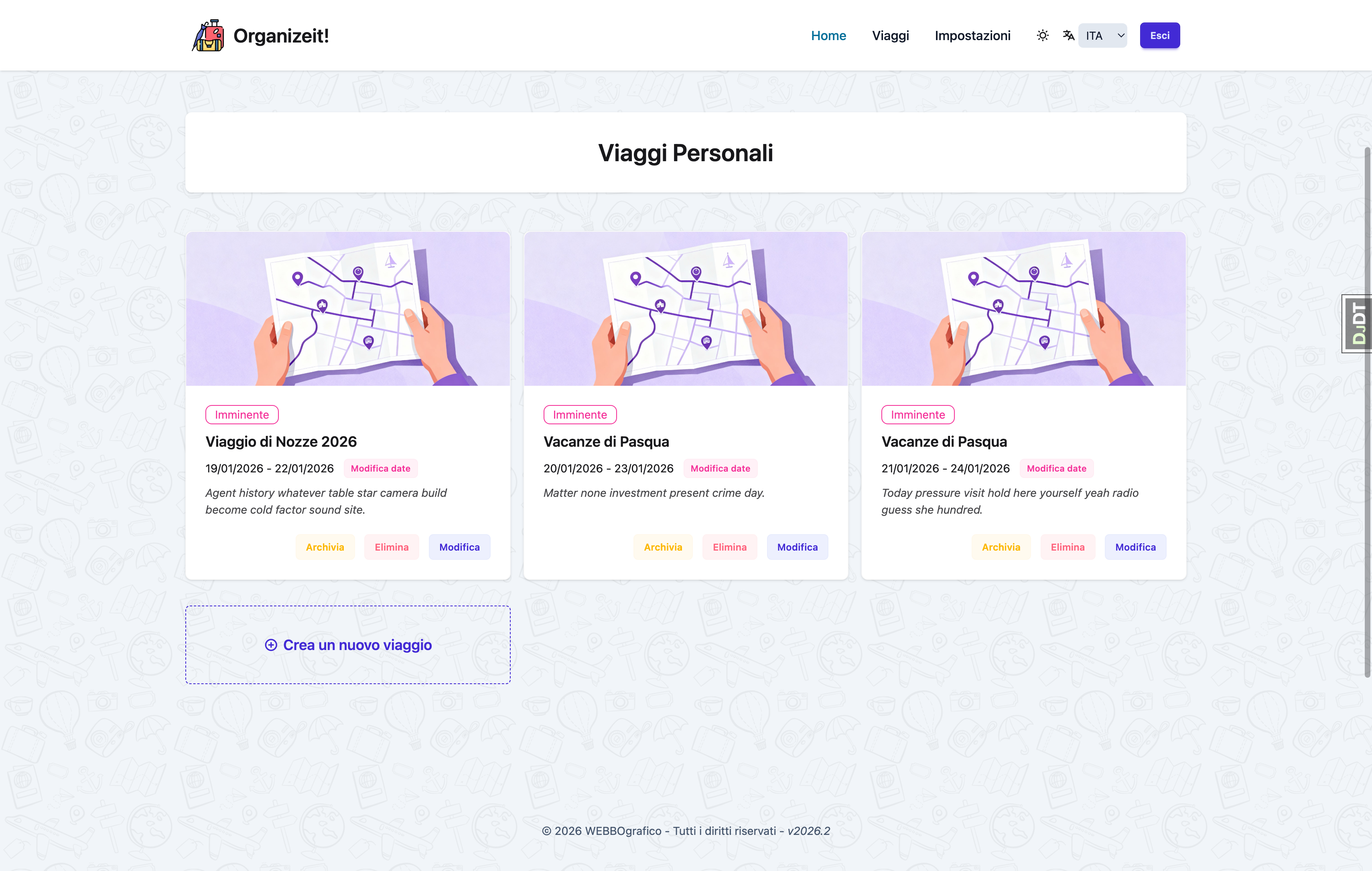 Your trip list on the homepage
From the Homepage
- Click Create New Trip button
- Fill in the trip details
- Click Save
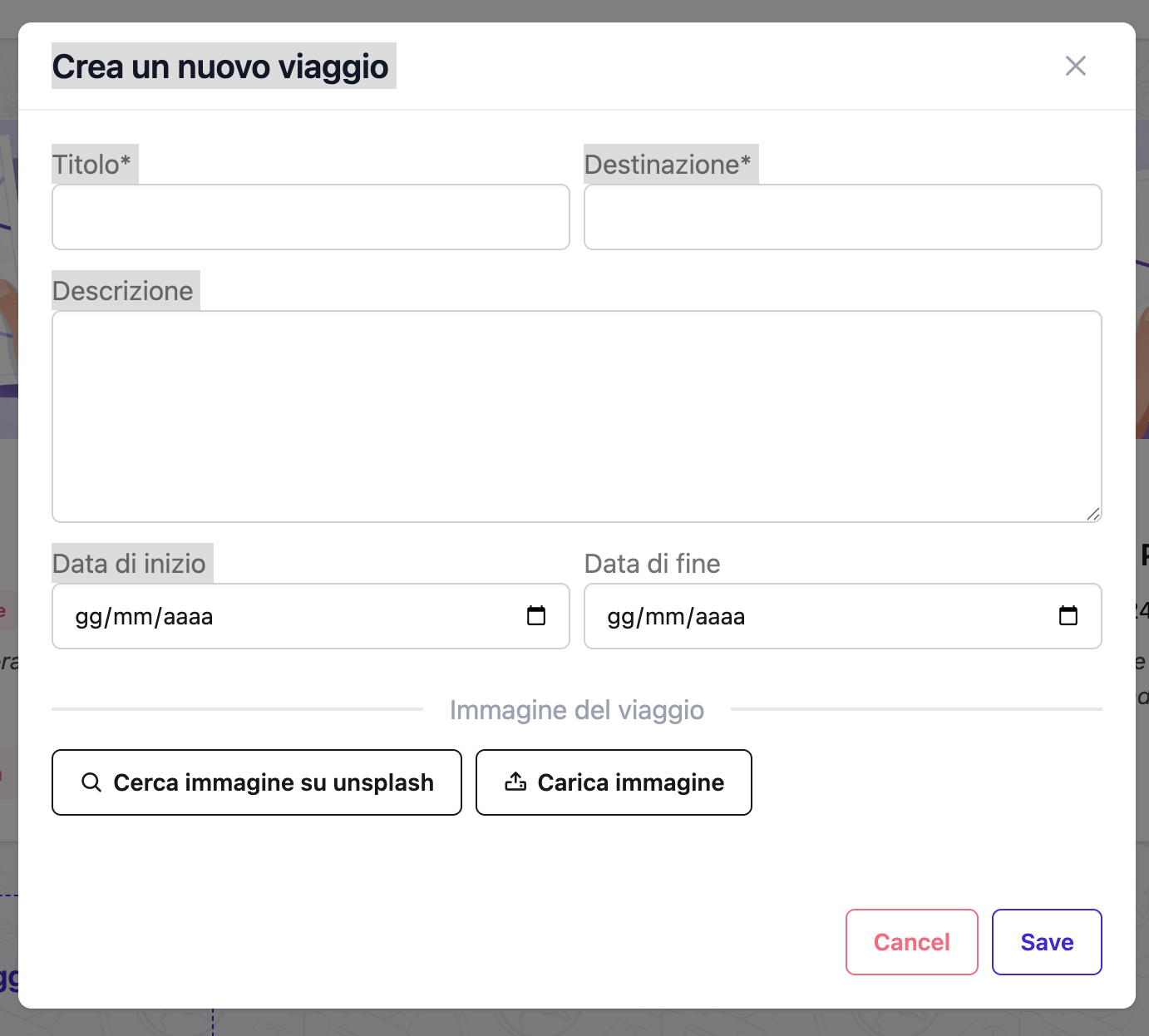 The trip creation form
Trip Details
Required Fields
- Title: A descriptive name for your trip
- Example: "Summer in Italy", "Tokyo Business Trip", "Weekend in Paris"
-
Max 100 characters
-
Destination: Where you're going
- Example: "Rome, Italy", "Tokyo, Japan", "Paris, France"
-
Max 100 characters
-
Start Date: First day of the trip
- End Date: Last day of the trip
Date Validation
End date must be on or after the start date.
Optional Fields
- Description: Additional details about the trip
- Max 500 characters
-
Example: "A relaxing week exploring ancient Rome with family"
-
Cover Image: Visual representation
- Upload your own image (max 2MB, landscape orientation recommended)
- Or search and use Unsplash photos directly
Trip Statuses
Organize It automatically updates trip status based on dates. You cannot manually change the status (except to Archive).
Status Types
| Status | When | Description |
|---|---|---|
| Not Started | Start date is more than 7 days away | Trip is in the future |
| Impending | Start date is within 7 days | Trip is coming soon |
| In Progress | Between start and end dates | Trip is happening now |
| Completed | After end date | Trip has finished |
| Archived | Manually set | Trip is archived and hidden from main view |
Status Transitions
The system automatically updates statuses:
Not Started → Impending (7 days before start)
         ↓
    In Progress (on start date)
         ↓
     Completed (after end date)
         ↓
     Archived (manual)
Archiving Trips
Archive completed trips to keep your trip list clean. Archived trips can be viewed in a separate section.
Managing Trips
Editing a Trip
- Navigate to the trip detail page
- Click Edit Trip
- Modify any field
- Click Save
Dates and Days
If you change start or end dates, the days will be automatically regenerated. Existing events will be reassigned to the closest matching day.
Deleting a Trip
- Navigate to the trip detail page
- Click Delete Trip
- Confirm deletion
Permanent Deletion
Deleting a trip will also delete all associated days, events, and stays. This action cannot be undone.
Archiving a Trip
- Navigate to the trip detail page
- Click Archive
- The trip status becomes "Archived" and is hidden from the main list
To view archived trips: - Use the filter dropdown on the homepage - Select "Show Archived Trips"
Favoriting Trips
Mark important trips as favorites:
- Navigate to the trip detail page
- Click the star icon
- Favorite trips appear at the top of your list
Quick Access
Favorite trips are displayed prominently on the homepage for quick access.
Cover Images
Uploading Your Own Image
- Click Upload Image in the trip form
- Select an image from your computer
- Images are automatically resized and optimized
Recommendations: - Use landscape orientation (16:9 or 4:3) - Maximum file size: 2MB - Supported formats: JPG, PNG, WebP
Using Unsplash Images
Organize It integrates with Unsplash to provide beautiful, free stock photos:
- Click Search Unsplash in the trip form
- Enter a search term (e.g., "paris eiffel tower")
- Browse results
- Click on an image to preview
- Click Use This Photo
Attribution
When using Unsplash photos, photographer attribution is automatically displayed on your trip page as required by Unsplash Terms of Service.
Attribution Format:
Photo by [Photographer Name] on Unsplash
Changing an Image
You can change the cover image at any time:
- Edit the trip
- Upload a new image or search Unsplash again
- The old image will be replaced
Removing an Image
- Edit the trip
- Check "Clear image" checkbox
- Save
Trip Days
Days are automatically generated when you create or edit a trip with dates.
How Days Work
- Auto-generated: Based on start and end dates
- Numbered sequentially: Day 1, Day 2, Day 3, etc.
- Date-aware: Each day has a specific calendar date
- Event containers: Each day can contain multiple events
Days Update Automatically
When you: - Change the start date → Days shift accordingly - Change the end date → Days are added or removed - Extend the trip → New days are created - Shorten the trip → Extra days are deleted
Shortening Trips
If you shorten a trip, days outside the new date range will be deleted along with their events. Make sure to review your events before shortening dates.
Trip Links
Add useful links related to your trip for quick reference.
Adding Links
- Navigate to the trip detail page
- Scroll to the Links section
- Click Add Link
- Fill in:
- Title: Descriptive name
- URL: Full web address
- Description (optional): Additional context
Link Examples
Useful links to add: - Flight booking confirmations - Hotel reservation pages - Tour booking confirmations - Restaurant reservation emails - Travel insurance documents - Visa information pages - Destination guides - Weather forecasts - Maps
Managing Links
- Edit: Click the link and modify details
- Delete: Click the delete button
- Open: Click the URL to visit in a new tab
Trip Overview Page
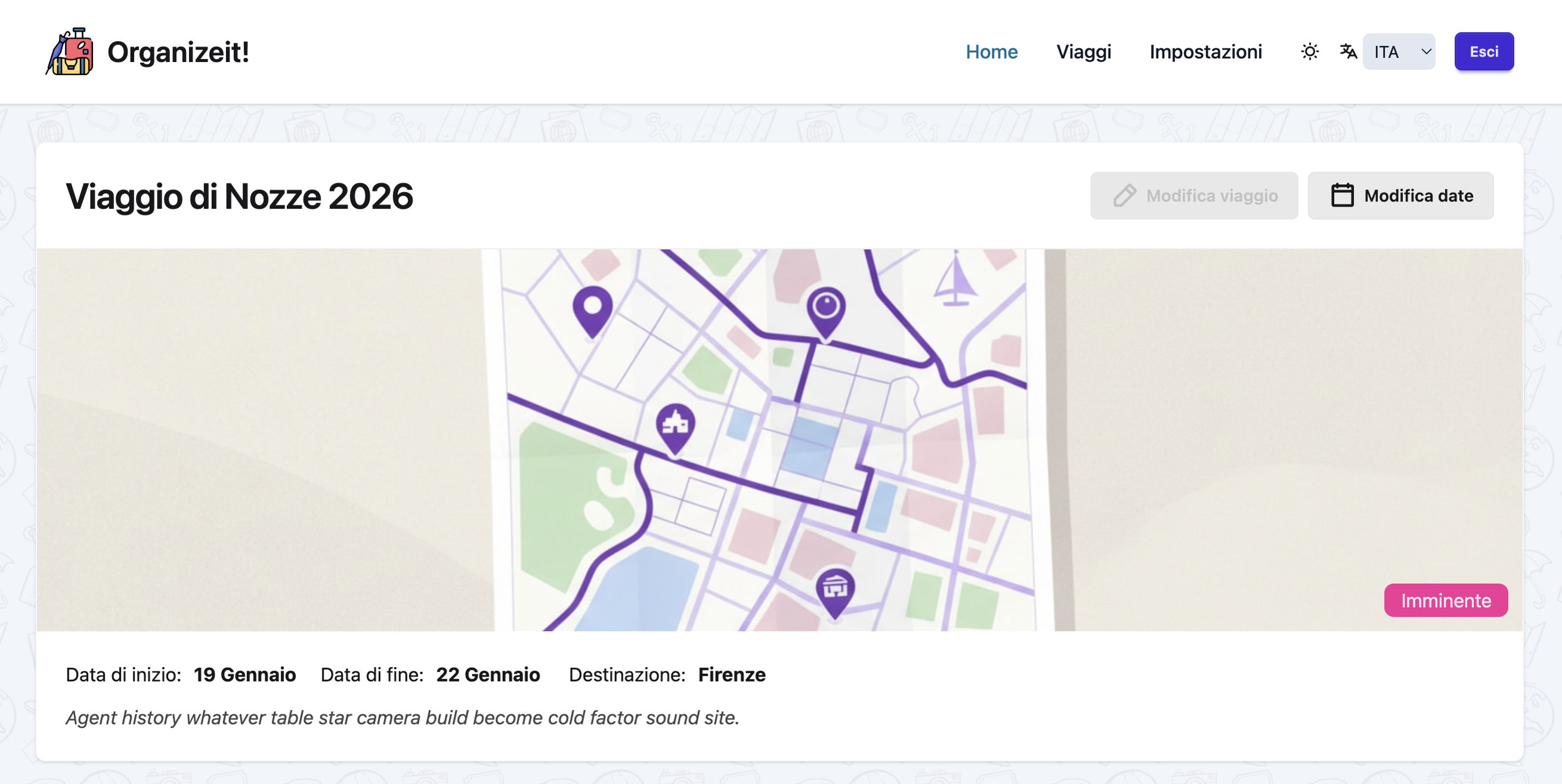 The trip detail page
The trip detail page shows:
Header Section
- Trip title and destination
- Cover image (if set)
- Status badge
- Date range
- Favorite star icon
- Edit and delete buttons
Days Section
- All days in chronological order
- Events organized under each day
- Stay information (if applicable)
- "Add event" buttons for each day
Stats Section (if available)
- Total number of events
- Number of stays
- Number of transfers
- Trip duration
Links Section
- All saved links
- Add new link button
Unpaired Events Section
- Events not assigned to any day
- Can be assigned later
Best Practices
Naming Trips
✅ Good examples: - "Rome & Florence - Spring 2025" - "Tokyo Business Trip (Q2)" - "Weekend in Barcelona"
❌ Avoid: - "Trip 1", "My Trip" (not descriptive) - Very long titles that don't fit in cards
Using Descriptions
Add context that helps you remember the trip's purpose: - "Annual family vacation with kids" - "Conference trip + sightseeing" - "Honeymoon - romantic getaway"
Organizing Multiple Trips
- Use favorites for upcoming important trips
- Archive old trips regularly
- Use clear, searchable titles
- Add the year to recurring destination trips
Planning Timeline
- 3+ months before: Create trip, add flights/hotels
- 1-2 months before: Research and add major activities
- 2-4 weeks before: Add restaurant reservations
- 1 week before: Finalize daily schedules
- During trip: Mark events as complete, add notes
Sharing a Trip
You can share any trip with friends, family, or travel companions via a magic link — no account required to view.
How Sharing Works
- Open the trip detail page
- Click the Share button (top right of the trip header)
- Choose an expiration (7 days, 30 days, 90 days, or never)
- Optionally add a label to identify the link
- Click Generate link
- Copy the link and share it
The recipient can view the full trip (days, events, stays) in read-only mode without logging in.
Expiration Options
| Option | Description |
|---|---|
| 7 days | Link expires after one week |
| 30 days | Link expires after one month |
| 90 days | Link expires after three months |
| Never expires | Link remains active until manually revoked |
Managing Share Links
From the Share modal you can see all active links and:
- Copy: Click the copy button to copy the link to clipboard
- Revoke: Click the × button to immediately deactivate the link
Revoked links cannot be reactivated. Create a new link if needed.
Security
- Links use cryptographically secure UUID tokens (128-bit)
- Shared views are strictly read-only — visitors cannot modify the trip
- You control expiration and can revoke at any time
Frequently Asked Questions
Can I have trips without dates?
No, start and end dates are required. Days are auto-generated from dates, and the status system relies on them.
Can I duplicate a trip?
Currently, there's no duplicate feature. You need to create a new trip and manually add events.
Can I share trips with others?
Yes! Use the Share button on the trip detail page to generate a magic link. Recipients can view the full trip in read-only mode without needing an account. See Sharing a Trip for details.
How many trips can I create?
There is no limit on the number of trips you can create.
Can I export my trip?
Yes. From the Share & Export menu on the trip header you can download an offline PDF of the itinerary and copy the URL of an iCal feed to subscribe to from any calendar app. See the Export & Calendar Sync guide.
What happens to events when I change trip dates?
Events are automatically reassigned to the closest matching day. Events outside the new date range become "unpaired" and must be manually reassigned or deleted.
Related Guides
- Days - Learn about day organization
- Stays - Add accommodations to your trip
- Experiences - Plan activities
- Meals - Add restaurant reservations
- Transfers - Manage transportation
- Checklist - Pre-departure to-do list
- Documents & Attachments - Tickets, vouchers and more
- Export & Calendar Sync - PDF export and iCal feed
- Weather - Forecast and reminder email
Next: Learn about organizing your trip by days