Stays
Stays represent your accommodations during the trip - hotels, apartments, hostels, or any place where you'll be staying overnight.
What is a Stay?
A Stay is an accommodation that spans one or more consecutive days in your trip. Stays can include:
- Hotels
- Apartments/Airbnb
- Hostels
- Guest houses
- Vacation rentals
- Friends' or family's homes
Creating a Stay
From Day View
- Navigate to the day where the stay begins
- Click Add Stay
- Fill in the stay details
- Click Save
From Trip Overview
- Find the day section
- Click Add Stay in that day's card
- Fill in details
- Save
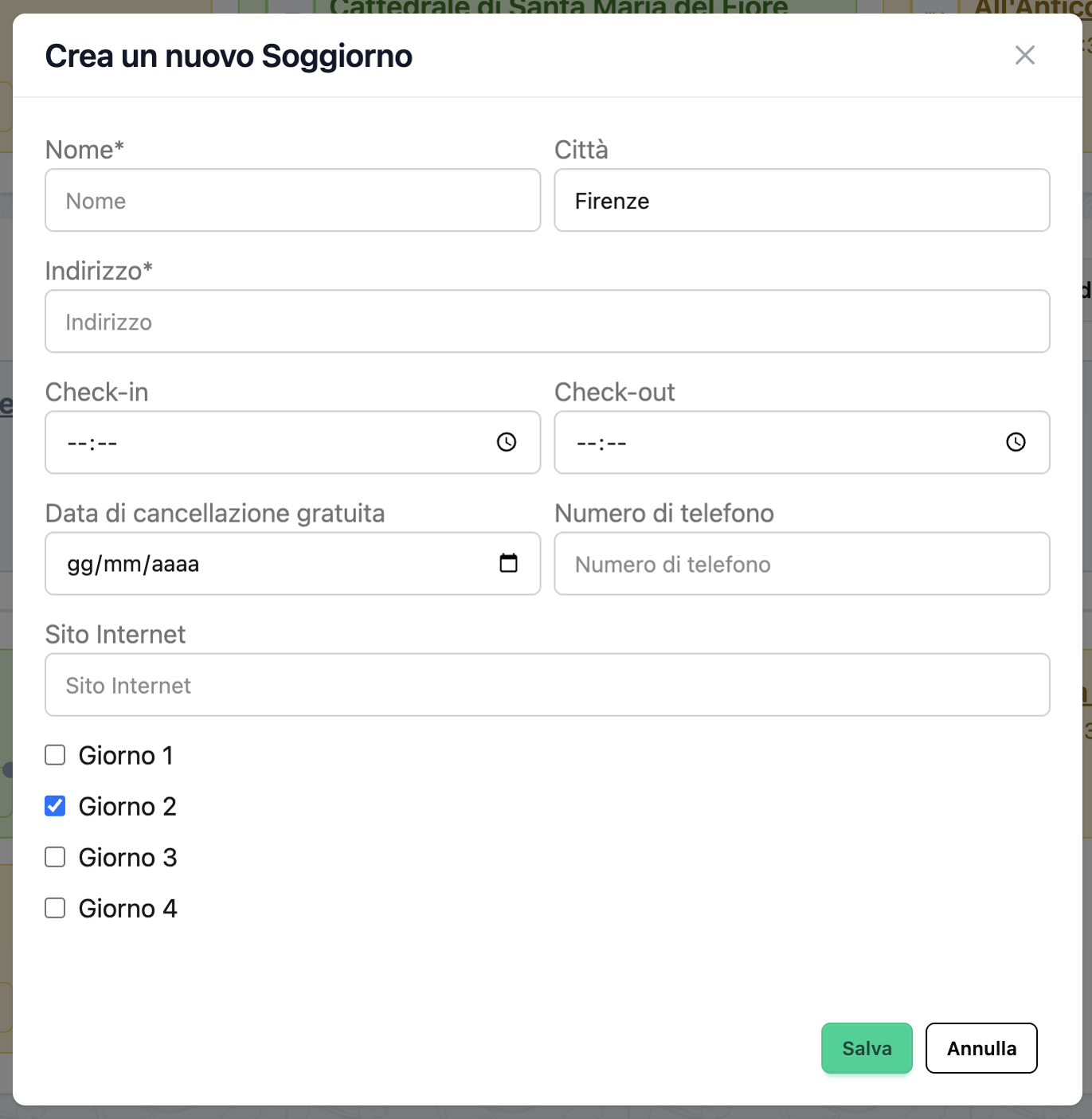 The stay creation form
Stay Fields
Required Fields
Name - The accommodation name - Example: "Hotel Forum Roma", "Sarah's Apartment", "Hilton Downtown" - Max 100 characters
Address - Full street address - Example: "Via Tor de' Conti, 25, 00184 Rome, Italy" - Used for geocoding and map display - Max 200 characters
Start Day - The first day of your stay - Example: Day 1
End Day - The last day of your stay - Must be on or after the start day - Example: Day 3
Optional Fields
Check-in Time - When you can access the accommodation - Example: 15:00, 14:00 - Displayed on the first day only
Check-out Time - When you must vacate - Example: 11:00, 12:00 - Displayed on the last day only
City - City name - Auto-populated during geocoding - Max 100 characters
Phone Number - Contact number for the accommodation - Example: "+39 06 1234 5678" - Can be auto-filled via Google Places enrichment - Max 50 characters
Website - Accommodation website URL - Example: "https://www.hotelforum.com" - Can be auto-filled via Google Places enrichment
Cancellation Date - Last date for free cancellation - Useful reminder for booking flexibility - Example: March 1, 2025
Notes - Additional information - Example: "Booking ref HTL123456. Free breakfast included. Pool on 5th floor. Late check-out arranged." - Record the booking reference or confirmation code here - Max 500 characters
Multi-Day Stays
Stays can span multiple consecutive days, which is typical for most accommodations.
How Multi-Day Stays Work
When you create a stay from Day 1 to Day 3: - The stay appears on Days 1, 2, and 3 - Check-in time shows on Day 1 - Check-out time shows on Day 3 - The same stay object is linked to all covered days
Example
Trip: Rome Weekend (Mar 14-16)

Day 1 - Friday, Mar 14
├─ Stay: Hotel Forum Roma
│  └─ Check-in: 15:00

Day 2 - Saturday, Mar 15
├─ Stay: Hotel Forum Roma

Day 3 - Sunday, Mar 16
├─ Stay: Hotel Forum Roma
   └─ Check-out: 11:00
Changing Stay Duration
To extend or shorten a stay:
- Edit the stay
- Change the End Day field
- Save
The stay will automatically appear on (or be removed from) the affected days.
Multiple Stays in One Trip
If you're moving between different accommodations during your trip, create separate stays:
Example: Two Hotels
Day 1-2: Hotel in Rome
Day 3-4: Hotel in Florence
Day 5: Hotel in Venice
Each stay: 1. Has its own dates 2. Has its own location 3. Shows on the appropriate days 4. Has separate check-in/out times
Plan Check-out to Check-in
Leave enough time between check-out from one stay and check-in to the next. Add a transfer between them if needed.
Location and Maps
Geocoding
When you enter an address, Organize It automatically:
- Converts the address to coordinates (latitude/longitude)
- Determines the city
- Validates the location
This enables: - Map display - Distance calculations - Location-based features
Viewing on Map
Stays are displayed on maps in: - Day detail view - Trip overview map (if implemented) - Event timeline with location markers
Geocoding Accuracy
For best results, use complete addresses with street name, number, postal code, and country.
Google Places Enrichment
Organize It can auto-fill stay details using Google Places API.
What is Enrichment?
Enrichment automatically fetches: - Official website URL - Phone number - Opening hours (if applicable) - Additional place data
How to Enrich a Stay
- Create or edit a stay with a valid address
- Click Enrich button
- The system searches Google Places for the address
- Select the correct result
- Details are automatically filled in
API Key Required
Google Places enrichment requires a configured API key. Check with your administrator if this feature is unavailable.
Enriched Data Fields
After enrichment:
- ✅ place_id - Google Places identifier
- ✅ website - Official website
- ✅ phone_number - Contact number
- ✅ opening_hours - Reception hours (if available)
- ✅ enriched flag set to true
Managing Stays
Editing a Stay
- Click on the stay card
- Click Edit
- Modify any field
- Click Save
Changes apply to all days the stay covers.
Deleting a Stay
- Click on the stay card
- Click Delete
- Confirm deletion
Deletion Impact
Deleting a stay removes it from all days it was assigned to. This action cannot be undone.
Moving a Stay to Different Days
- Edit the stay
- Change Start Day and/or End Day
- Save
The stay will move to the new day range.
Best Practices
Booking Information
✅ Include: - Confirmation numbers - Cancellation dates - Special requests (early check-in, late check-out) - Important notes (parking, breakfast, amenities)
Complete Addresses
✅ Good address:
Via Tor de' Conti, 25
00184 Rome, Italy
❌ Incomplete address:
Hotel Forum Roma
Complete addresses enable proper geocoding and map display.
Check-in/out Times
- Always include check-in and check-out times
- Set reminders if you need early check-in or late check-out
- Note standard times in the Notes field
- Example note: "Standard check-in 15:00, requested early check-in at 12:00"
Using Notes Effectively
Good notes include: - Parking instructions - WiFi passwords (if known in advance) - Amenities (pool, gym, breakfast) - Special arrangements - Contact person name - Backup phone numbers
Example:
Free parking in rear lot. WiFi: hotelguest / password123.
Pool open 7am-10pm. Breakfast buffet 7-10am included.
Contact: Marco (front desk) +39 123 456 7890
Stay Display
On Day Cards
Shows: - Stay name - Check-in time (first day only) - Check-out time (last day only) - "Staying" indicator (middle days)
On Day Detail Page
Shows: - Complete stay information - Address with map - Check-in/out times - All notes and details - Edit/delete actions
On Maps
Shows: - Pin marker at stay location - Stay name on hover - Click to view full details
Frequently Asked Questions
Can I have multiple stays on the same day?
No, each day can only have one stay. If you're changing accommodations mid-day, assign one stay to that day and the other to the next day. Use a transfer to represent the move.
What happens if I delete a day that has a stay?
If you shorten a trip and delete days, the stay will be adjusted: - If only middle days are deleted: Stay becomes non-consecutive (not recommended, edit manually) - If the last day is deleted: Stay end date moves to the new last day - If all days are deleted: The stay is removed
Can I create a stay that doesn't belong to any day?
No, stays must always be assigned to at least one day (start day and end day).
How do I handle same-day check-in and check-out?
Set both Start Day and End Day to the same day. This represents a single-night stay where you check in and out on the same calendar day (e.g., Day 3).
Can I add multiple locations for a stay?
No, each stay has one address. If you have multiple room bookings at different properties, create separate stay entries.
Why isn't my address geocoding correctly?
Try: - Adding more detail (street number, postal code, country) - Using official address format from Google Maps - Checking for typos - Using English transliterations for non-Latin addresses
Can I attach documents to a stay?
Yes. You can attach up to 2 PDFs or images (max 2 MB each) — voucher, receipt, apartment instructions — to each stay from the Documents card on the trip page. See the Documents & Attachments guide.
Related Guides
- Days - Understanding day organization
- Trips - Managing trips
- Transfers - Moving between stays
- Experiences - Activities near your stay
Next: Learn about adding experiences to your days