Shared Expenses
Organize It can track who paid for what during a trip and split shared costs among the participants. It works out who owes whom with the minimum number of transfers, and even handles families where children's shares are charged to their parents.
Opt-in per trip
Expense sharing is disabled by default on every trip. Turn it on from the Expenses card when you want to start tracking costs — nothing is calculated until you enable it.
How It Works
- You enable expense sharing on a trip from the Expenses card.
- You configure the participants: pick the trip currency, group couples/families into family units, and mark children.
- Anyone with edit access adds expenses — either standalone or linked to a stay, event, or transfer — and chooses who to split each one with.
- Organize It computes the balances and shows the simplified settlements (who should pay whom) in the Expenses modal.
Enabling Expense Sharing
- Open a trip and find the Expenses card.
- Flip the Enable expense sharing toggle in the card header.
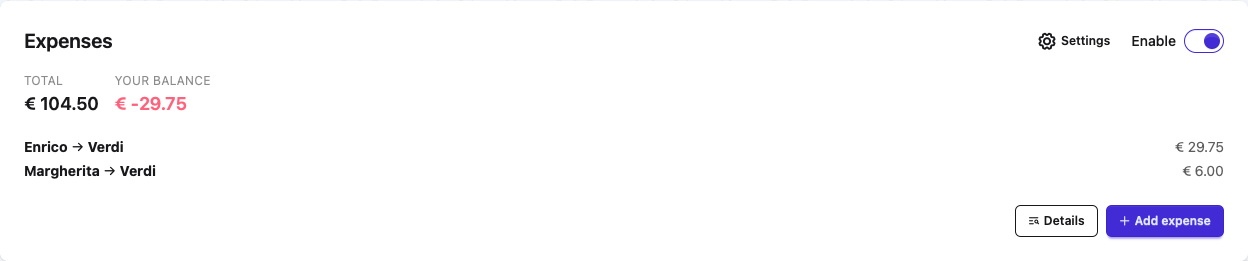
The trip currency is set automatically from your profile's preferred currency the first time you enable the feature. You can change it later in the expense settings.
Data is preserved
Turning the toggle off again keeps all your expenses and configuration. The card just shows a call-to-action to re-enable, and no balances are displayed until you turn it back on.
Configuring Participants
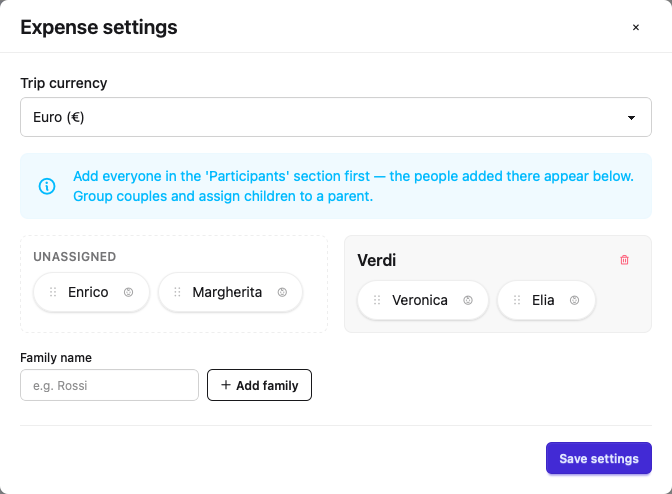
Open the expense settings (the gear icon on the Expenses card) to set up the trip.
Add people first
Participants come from the trip's Participants section (Who's coming). Add everyone there first — the author and every collaborator, including "name only" people without an account, appear automatically in the expense settings.
Trip Currency
Pick a single currency for the whole trip (EUR, USD, or GBP). All amounts and balances are shown in this currency.
Family Units
A family unit groups people who share a single wallet — typically a couple or a family. Drag a participant's chip onto a family unit to assign them, or drag it back to Unassigned to detach.
A unit is treated as one party: debts inside the unit cancel out, and settlements are shown per unit rather than per person. When you add an expense, the whole unit appears as a single choice for who paid and who to split with (see below).
Mobile
On small screens, drag & drop is replaced by a family selector on each participant chip.
Children
Mark a participant as a child to say their share should be charged to the adults of their family unit instead of to themselves:
- With two adults in the unit, the child's share is split 50/50 between them.
- With one adult, that adult covers the child's whole share.
Assign children to a unit
A child who is not in a family unit with at least one adult keeps their own share, and the Expenses modal shows a warning. Always place children in a unit with a parent so their cost is attributed correctly.
Adding an Expense
There are two ways to record a cost.
Standalone Expenses
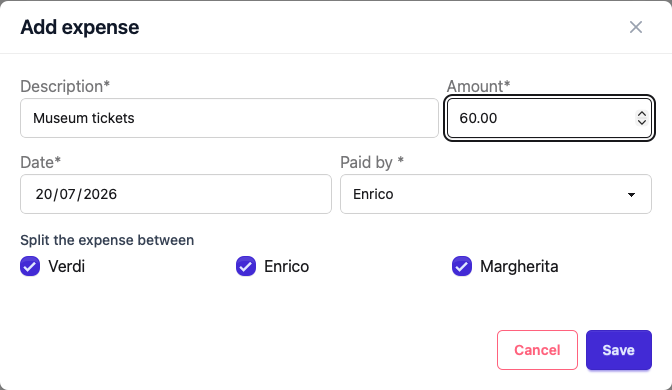
From the Expenses card, choose Add expense and fill in the description, amount, date, who paid, and who to split it with. Paid by defaults to you and can be changed. At least one party must be selected.
Family units are one choice
Where you have a family unit, it appears as a single option in both Paid by and Split between — pick the unit instead of its individual members. Splitting with a unit charges an equal share to each of its members under the hood, and a payment by a unit is credited to the whole unit.
Costs Linked to a Stay, Event or Transfer
On a stay, experience, meal, or main transfer, use Add cost to attach an expense directly to that item. The date defaults to the item's day (or the trip start/end for arrival/departure transfers). The linked item is shown on the trip and in the detail view with its cost.
Linked expenses survive deletion
If you later delete the stay, event, or transfer an expense was attached to, the expense is kept as a standalone cost so your balances stay correct.
Splitting Rules
Each expense is split equally among the participants you shared it with. Amounts are divided to the cent, with any leftover cents distributed deterministically so the shares always add up exactly to the total. A person's own share is only charged to them if they are included in the split.
Balances and Settlements
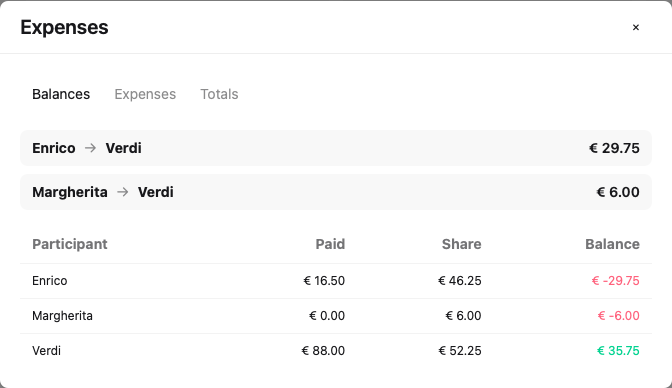
Open the Expenses modal (the Details button on the card) to see everything in three tabs:
- Balances — the minimal set of settlements between wallets ("A pays B") plus a per-wallet breakdown of what each party paid and owes. A warning appears here if any child is unassigned.
- Expenses — the full list of expenses by date, with edit and delete actions.
- Totals — totals by day, plus the trip total.
The Expenses card itself shows the trip total and your personal balance (how much you owe or are owed).
Simplified debts
Settlements use the minimum number of transfers (Splitwise-style): instead of everyone paying everyone, Organize It nets it all down to the fewest "A pays B" transfers, always summing to zero.
Removing a Collaborator
If a collaborator who already has expense history is removed from the trip, their expenses are kept and the participant is simply deactivated (shown greyed out) so the balances remain accurate. A collaborator with no expenses is removed cleanly.
Related Guides
- Collaboration - Adding participants to a trip
- Stays - Accommodation you can attach costs to
- Experiences - Activities you can attach costs to
- Meals - Dining you can attach costs to
Next: Learn about transfers